Editing a Custom Field
The administrators can edit a custom field.
To edit a Custom Field:
- Go to Settings in top navigation.
- In left navigation, select KACE Cloud > Custom Fields > Devices to open the custom field list.
- Select a Custom Field from the Custom Fields list to open the field details
- Click Edit to open Device Custom Field dialog.
- Modify the required details. For example, add a new collector, modify or delete a collector, and so on. For more information on editing default values, See Editing a Default Value.
- Click Save Custom Field to save the changes.
Editing a Default Value
-
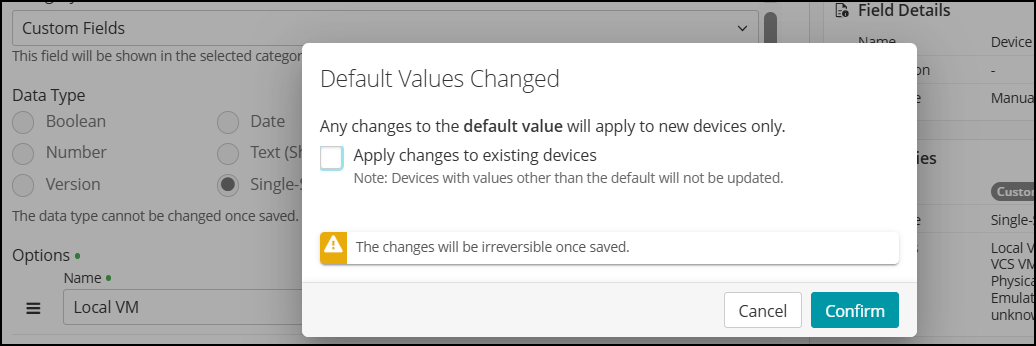
When you change the Default Value, a confirmation dialog prompts you to choose whether to apply the change to existing devices.
- If you select the checkbox, the system updates device values only if the default value has not been modified on that device, either by inventory for Collected Custom Fields or by manual editing for Manual Custom Fields.
- If you do not select the checkbox, the new default value applies only to the devices added after the change; existing devices keep their current values.
-
When you edit option list fields (Single-Select or Multi-Select):
- If you only change the default value, a confirmation dialog prompts you to choose whether to apply the change to existing devices.
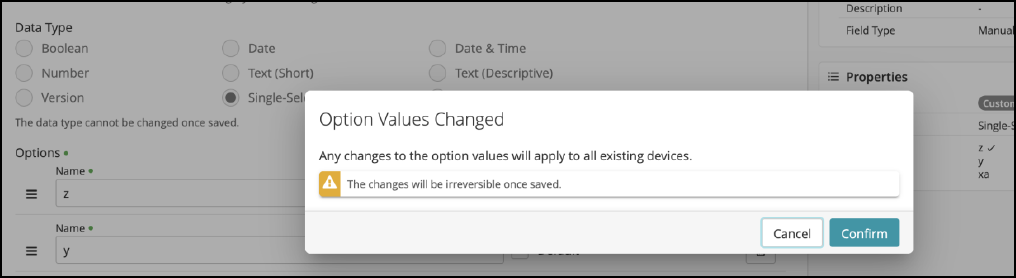
- If you rename or remove options, the system updates existing devices automatically. A confirmation dialog that appears does not include the 'Apply changes to existing devices' option.
- If you rename an option, remove another, and change the default value at the same time, existing devices are updated automatically. A confirmation dialog that appears does not include the 'Apply changes to existing devices' option.